


Transfer Project ownership
You can transfer ownership of a Project to another user and also transfer Projects between Workspaces.
Transer Project Ownership
Sender:
- Locate a Project you want to trasnfer;
- Open the Project context menu and select Move&Transfer;
- Click Transfer Ownership and choose a user added to the Project OR enter his email manually;

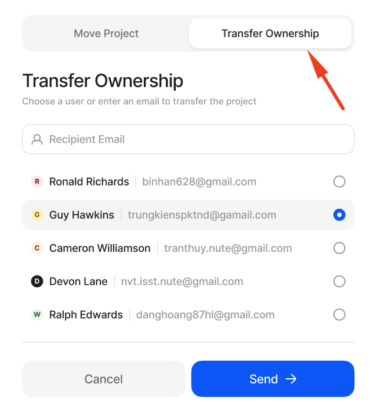
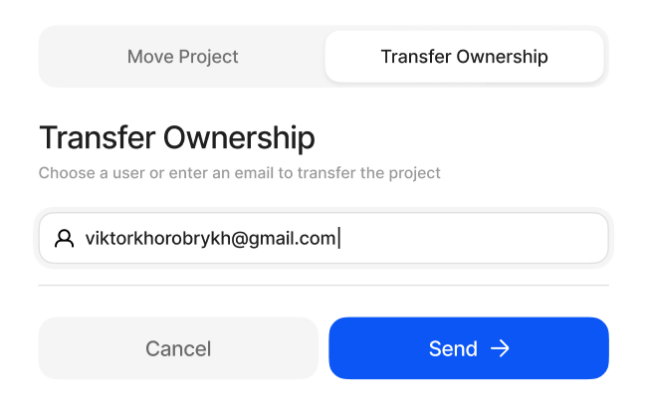
Done!

After that you will be able to see a Project sent notification – you’ll have to wait until a recipient will accept the transfer. In the meantime you can also cancel transfer.
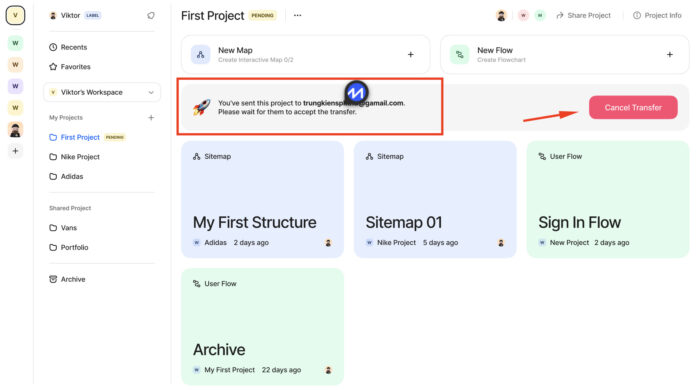
Recipient:
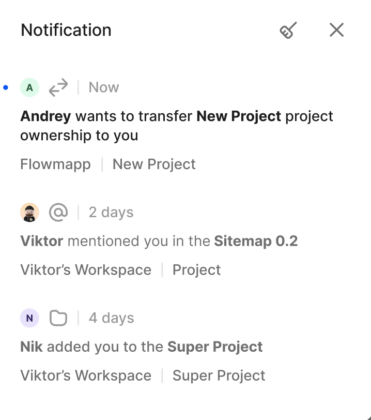
First, you will be notified about the incoming Project trasfer directly in the app:
And also receive an email about it:
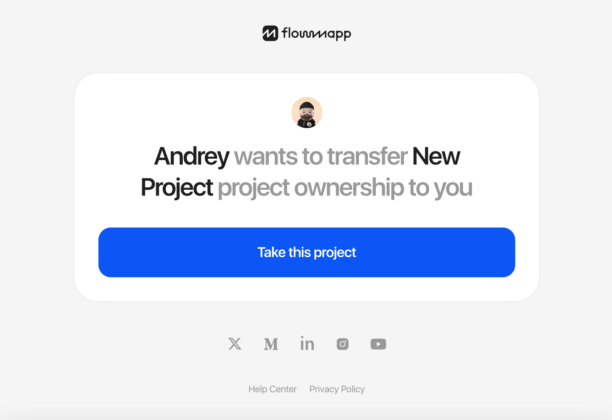
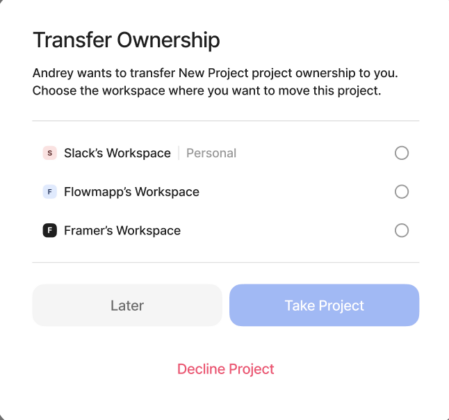
If you follow up the notification or the Take this project button in the email you can select a Workspace for the Project or decline it:
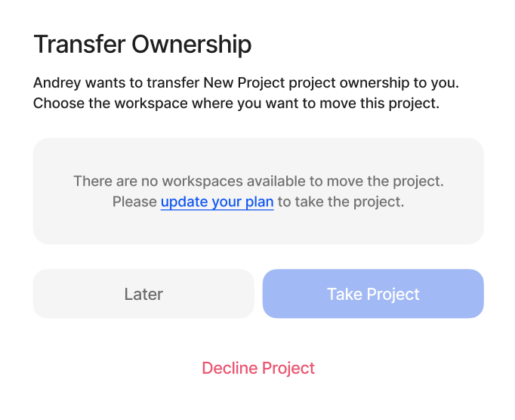
In case there are now available Workspaces or your subscription quota does not allow this you will be notified:
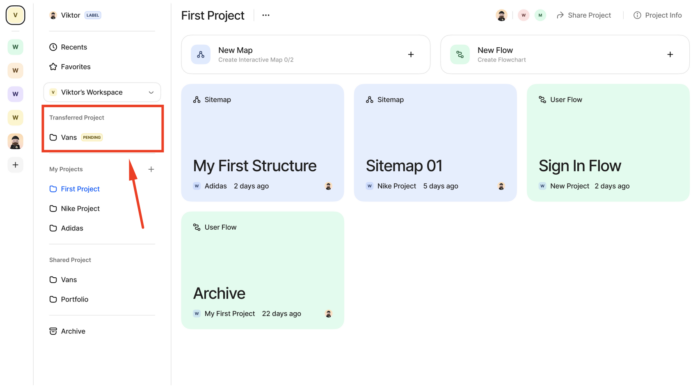
Transferred Projects will be temprorarily stored in this area to simplify searching a just received Project:
Transfer Projects between Workspaces
- Locate a Project you want to trasnfer;
- Open the Project context menu and select Move&Transfer
- In the Move Project tab choose a Workspace needed and click Send.
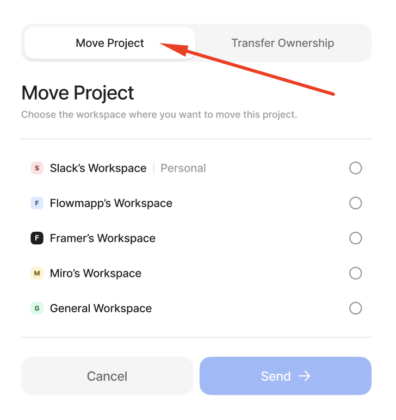
If you want to move a Project to Team worksapce please make sure first you are added to this Team Workspace.


